.webp "Guide to PDF Sizes and Smart Compression Tips")

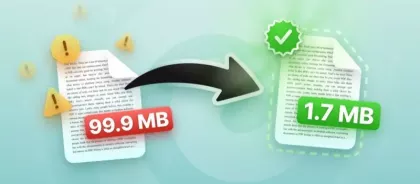
When I jumped into working with digital documents, I was caught off guard by how wildly PDF sizes can swing. One paper barely takes up any space, and the next one - packed with what looks like the same stuff - ends up eating hundreds of MB.
Figuring out what’s actually a "normal" file weight saves a ton of time and helps you avoid storage headaches.
So, I'll show you what to expect from average footprint in different situations. That way, you’ll know when a draft’s totally fine, and when it’s almost time to squash it down in size.
Early in my workflow: tools to compress PDF file
Before I get into the details on size benchmarks and optimization tricks, I have to mention a handy shortcut: PDF reducers.
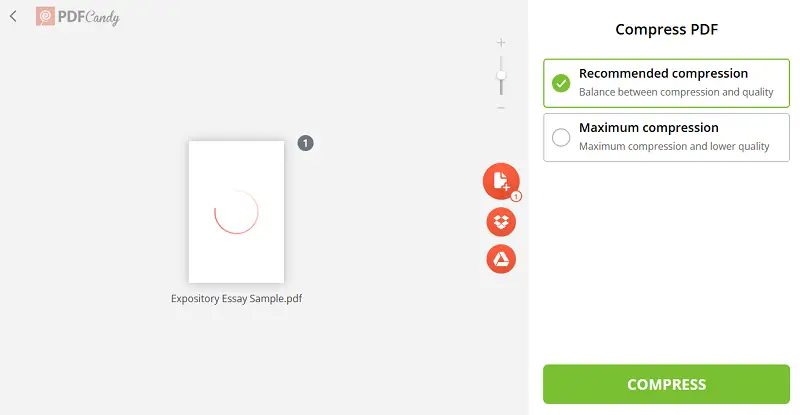
Honestly, after I finish a paper - especially if it’s packed with images or charts - the weight can get out of hand fast. I’m not here to pitch any one tool, but PDF Candy make shrinking papers almost too easy.
Alright, with that, let’s dig into what exactly qualifies as a large PDF, and what counts as a "reasonable" depending on your plans for it.
What actually makes up a PDF’s file size
There’s a lot going on under the surface: fonts, photos, vector graphics, PDF metadata, bookmarks, even audio or clips sometimes.
All these pieces stack up and decide whether your material ends up slim or bloated. It’s not just what you see on the page, either. Things like how pictures are saved, which typefaces are embedded, and the export settings you use all create change.
Here’s what really adds footprint to your PDF:
- Text. Plain sentences barely puts a dent. You can cram a ton of words in most PDFs and still keep things light.
- Fonts. Embedding lettering keeps your report looking right everywhere, but it comes at a price. Some sets eat up hundreds of kilobytes - more space than the phrases themselves.
- Raster scans. Here’s the big one. Illustrations typically comprise most of a PDF. In a lot of cases, depictions chew up 60% to 80% of the total volume.
- Vector line art. Diagrams, logos, and charts made from vectors compress much better than photos, but they’re not totally free. Utilize a lot of them, and you’ll still see the capacity creep up.
- PDF metadata and annotations. Objects like bookmarks, thumbnails, or form fields might be invisible, but they’re still hiding out, adding extra baggage.
- Colors and layers. Fancy PDFs (design portfolios or presentations) pack in tone profiles or multiple levels. All that extra piles on even more bytes.
Page count doesn’t tell you much. Two PDFs with the same number of pages can be wildly different in size. All because of what’s inside and how it’s exported. The devil’s in the details.
What "normal" in size PDF looks like
Here’s a quick breakdown of what you can usually expect when it comes to PDF file sizes. These numbers come from published data - think of them as ballpark figures, not strict rules.
| Type | Range | Comments |
|---|---|---|
| Short, text-only (1–5 pages). | ~50 KB to ~500 KB. | Barely any fonts, no visuals. |
| Longer, text-heavy (10–50 pages). | ~0.3 MB to ~2–4 MB. | Passage shrinks nicely; typography takes up a little space, not much else. |
| Mixed content: lines plus drawings (10–30 pages). | ~3 MB to ~8–15 MB. | Incline a few graphics and the size grows, but not out of control. |
| Image-heavy. | ~10 MB to ~40–60 MB or more. | Massive, detailed snapshot really pile up the megabytes. Throw in some multimedia, and the paper gets even heavier. |
| Long image-based PDFs (100+ pages of scans). | ~50–200 MB+ depending on resolution and color. | Every page is basically a picture. The higher the DPI and depth, the bigger the dossier. |
| Large catalogs or manuals. | Usually 60–100+ MB; sometimes several hundred MB if not optimized. | Lots of high-res thumbnails, no compression, and duplicate resources. |
One study looked at an immense batch of PDFs and found the average size hit about 70.4 MB, while the median sat closer to 9.6 MB.
Signs when you need to reduce PDF file size
So, when should you actually step in? Here’s what I look for:
- The paper’s way heftier than it should be for what it is. Like, if own a simple report that somehow weighs in at 20 MB. Or a brochure with barely any images but it’s 50 MB. Something’s off.
- You need to upload or email it. Most servers and web forms cap email attachment weight at 10, 20, maybe 30 MB. Large PDFs won’t go through.
- Opening, scrolling, or downloading feels slow. This shows up on phones or with bad internet. Long load times drive people nuts.
- It’s eating up too much storage. If you’ve got a lot of PDFs, those huge piles will fill up your hard drive or cloud storage before you know it. Backups get trickier, too.
- **Unnecessarily HD items inside*. Scanned document pages at 600 DPI when you only need 150–200 for screens, or ultra-sharp portraits where a lower-res version would look good.
If you spot any of these, it’s probably time to employ PDF optimizer.
How PDF compression works
If you want a lighter and smaller PDF, you really have to go after the heavy stuff. Most modern PDF shorteners - whether you’re using a slick desktop app or some quick online tool - tackle the same trouble spots.
Image down-sampling
Honestly, renders are usually the main culprit when a PDF balloons in size. Knock down the resolution (say, from 300 DPI to 150 DPI), or utilize smarter reduction (JPEG, JPEG2000, or ZIP if it fits), and you’ll see instant results.
Font subsetting
If you’re only utilizing a handful of characters, why drag around entire typeface families? Minimizing glyphs means you keep only what you need, nothing more. It can really condense PDF.
Export settings that fit your PDF’s real purpose
When you save, the settings you pick affect everything. If your it is just for screens, dial back the resolution and crank up compression to make PDF smaller. No sense saving quality if nobody’s ever printing it.
Most PDF editors, even the free ones, let you hit a "reduce PDF file size" or "optimize PDF" button. You get some control over what gets trimmed, so you can find that sweet spot between sharpness and weight.
When you shouldn’t compress PDF
Knowing how to decrease PDF size has its perks, but sometimes you’re better off leaving your paper as is. Here’s when that has sense:
- You need to print or publish the document professionally.
- Fonts matter a lot - maybe you’ve got special typography, non-Latin scripts, or you need things to stay accessible.
- The PDF has interactive stuff like forms, bookmarks, comments, or layers. Removing PDF metadata can break those features.
- The content’s super detailed - portfolios, maps, or illustrations, where heavy reduction ruins the fidelity.
In these situations, stick with the original. If you have to maintain the PDF file size down, share a "viewer" copy, but always hang on to that full-quality version.
Final thoughts
After dealing with thousands of PDFs, I can tell you there’s no one-size-fits-all answer for "ideal" volume. You have to think about how people will use it, how good it needs to look, and how you’re going to share it.
- Simple documents: Usually, a few hundred KB up to a couple megabytes covers it.
- Medium PDFs with a mix of assets: These often land between 2 and 15 MB, depending on the pictures and how fancy the layout gets.
- Big, image-heavy reports: Sometimes these balloon to dozens or even hundreds of megabytes. PDF compression helps a lot here.
If you know what’s taking up space, you can make smarter choices. Tools like PDF Candy simplify the process of slimming down bloated PDFs while keeping them useful.