(1).webp "Turn Tax Documents into Searchable PDF Files")

When tax season hits, my desk turns into a mess - papers everywhere, receipts crumpled, invoices lost in the shuffle. If you handle your own finances, you probably know the drill.
But OCR technology changed the game for me. Now, I scan the whole pile and, just like that, I get a searchable PDF. No more wasting an afternoon hunting for that one receipt from six months ago.
I’ll walk you through how I keep my records in order, turn stacks of paper into neat digital files, and actually make tax time feel less like a headache and more like a win.
Initial Triage and Categorization
Before I even start scanning, I sit down and sort out the bills.
How I break them up:
- Deductible expenses - like meals, office supplies, or business travel
- Stuff I’ll get reimbursed for, or things I’ll invoice to clients
- Personal expenses that have nothing to do with taxes
I use envelopes or folders, and I label them by month so I don’t get lost later. Each document gets a quick note: who it’s from, the date, why I spent the money. Trust me, filenames alone never cut it when you’re hunting for something months down the line.
Examples? Super strict: YYYY-MM-DD_vendor_category_amount.pdf. This way, I can dump everything into a system and let software do the sorting, no sweat. Plus, I tag papers in cloud storage, so I find them when tax season rolls around.
I also split receipts up by type: stuff that comes up every month (like utilities or subscriptions), one-time buys (equipment, travel), and unpredictable items (donations, medical bills).
High-Fidelity Scanning
Getting good OCR results really comes down to scan quality.
Here’s how I tackle it:
- I lay documents flat on a non-reflective surface.
- If I’m dealing with small or wrinkled vouchers, I press them under something heavy first.
- I make sure the lighting’s even—no glare, no weird shadows.
Resolution matters a lot. For most printed stuff, 300 dpi does the job. But if the text is tiny or the doc’s worn out, I bump it up to 400 or even 600 dpi.
When I scan multi-page statements, I uphold with grayscale - keeps the content sharp but doesn’t blow up the size. I’ve also started using colored backgrounds for different types of confirmations. This helps the PDF text recognition engine spot the content faster and filter out the junk.
Advanced OCR Techniques
PDF OCR accuracy really depends on what you’re scanning. With printed invoices, you usually get 95–99% character recognition.
But manual notes? That’s a different story. You have to check those by hand.
Here’s my approach:
- Printed stuff. I run fast passes using either local or cloud apps.
- A mix of sources. I batch process structured files, and for messy handwriting, I just transcribe it myself.
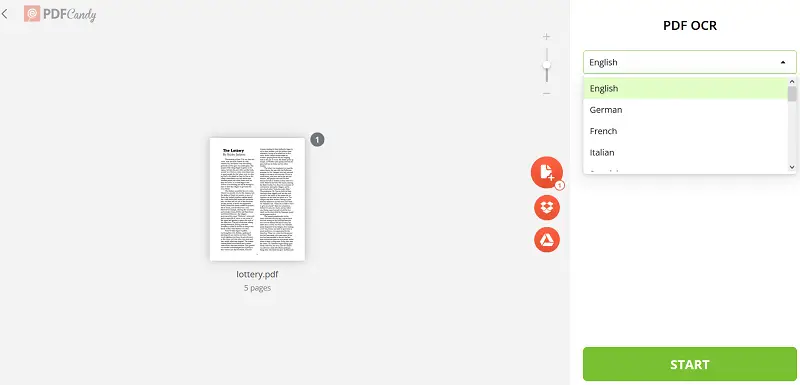
Modern OCR tools let you pick languages, analyze layouts, and spot tables automatically. That’s a lifesaver when you’re dealing with accounts that have a bunch of line items.
Getting it right matters, especially for tax paperwork. Even tiny errors can mess up deductions. For anything sensitive, to make PDF searchable I stick with local software (like PDF Candy) or encrypted enterprise programs so nothing leaks.
Then, I clean up the materials, delete duplicates, fix weird characters. That way the final PDF is rock solid.
Verification and OCR Quality Control
I go back and double-check:
- Dates, amounts, vendor names, and invoice numbers
- Decimal points and any swapped numbers
- Key info side-by-side in a two-column spreadsheet
When there’s a mountain of documents, I don’t revise every single one. Instead, I pick a sample from each batch and dig in.
If I spot mistakes in that sample, I stop and go through the whole pile. I get the right balance - fast enough to keep moving, careful enough to catch errors.
I also keep a change log for manual fix. So, if the IRS ever comes knocking, I’ve got a clear record showing what changed and why.
PDF Consolidation and Compression
Once I’ve checked, I merge all the PDF files together into one PDF for each tax year and entity. I add bookmarks so you can jump straight to key sections:
- Income statements
- Receipts and invoices
- Charitable contributions
- Mileage logs
When it comes to compression, I keep things balanced. I always keep the OCR text layers sharp, but shrink down image resolution where I can.
Before merging, I set up a folder structure that actually makes sense: main folders for business and personal, and then subfolders for each document type.
Metadata and PDF Searchability
A truly scannable PDF needs solid metadata. Here’s what I include:
- The title, author, and a set of targeted keywords
- Tags for specific sections
- Internal keywords: vendor names, invoice numbers, categories
I go a step further and add hidden details, like when the paper was created and a unique ID for every photocopied receipt. These pieces ease up tracing the history and let audit tools fly through their checks.
This setup makes finding what you need a breeze, even if optical character recognition stumbles on a word or two. I also keep the language tight and consistent. That way, PDF searches actually work, and nothing slips through the cracks.
Archival Strategy
Here’s how I handle backups: I stick to the 3-2-1 model.
- Three copies. I hold the main folder on my computer, a second copy on an external SSD, and a third one offsite.
- Two media types. Info gets saved as both PDF and PDF/A, so it’ll hold up for years.
- One offsite location. If something happens at home or the office, I’ve still got data safe somewhere else.
I hang on to files for at least seven years to stay in line with tax rules. When I export PDFs, I lock them down as read-only, so the layout and text stay the way I want.
Every so often, I go back and check my backups. I open up archived PDFs to ensure the OCR document is still searchable and nothing’s gotten corrupted sitting on a drive.
Common Pitfalls
| Issue | Mitigation |
|---|---|
| Blurry scans | Capture again with higher resolution and verify the paper’s flat with good lighting |
| OCR technology errors on handwriting | Manually transcribe key fields and run verification checks |
| Privacy exposure | Utilize local or enterprise tools that have clear data retention policies |
| Overly detailed filenames | Stick to concise, consistent naming |
| Missing bills | Record the reasons and keep thorough logs |
Conclusion
Turning receipts and statements into tidy, searchable PDFs isn’t magic - it just takes some discipline, solid instruments, and a sharp eye for detail.
Rely on OCR, use structured metadata, back up your files, and check things regularly. Get this workflow nailed down, and you won’t scramble at the last minute. Everything stays easy to find, and you’re always ready for an audit.

(1)(1).webp?w=420&h=184)
(1).webp?w=420&h=184)