
Adobe Acrobat is definitely well-known for PDF editing, but honestly, it’s not your only choice. You don’t have to depend on Acrobat just to crop a PDF—there are plenty of other ways to get it done.
Need to trim a PDF and skip the Adobe route? You’re in the right place. This guide covers alternative solutions, including free online tools, downloadable software, and even some built-in features you might not know your device has.
Follow along for simple, step-by-step instructions for how to crop a PDF without Adobe efficiently.
Why crop a PDF?
Cropping a PDFs could be a beneficial tactic for different purposes. Below are some of the common reasons:
- Making the document fit in a certain area. PDF cropper can help a paper fit into a specified frame, such as when printing out a file or inserting it into another one.
- Removing confidential information. Sometimes people must edit out certain parts of a draft containing confidential information, like bank details or addresses.
- Removing empty margins. By cropping excess empty space around the edges of a page, you can create a more space-efficient version of the report.
- Enhancing aesthetics. Sometimes PDF cropping tool can improve the overall appearance and make your file look better.
- Adjusting the orientation. Cutting lets you alter the orientation of the PDF to ensure it's displayed correctly.
Fact: PDFs are a standard format in many institutions: the U.S. National Archives holds over 750 million unique electronic records (which include PDF reports).
Method 1. PDF Candy
PDF Candy functions as an all-in-one online toolkit for PDF management. It handles everything from file conversion—like transforming PDFs into Word docs or images—to merging, splitting, and compressing. The interface is streamlined, so users can complete tasks quickly without navigating a confusing layout.
How to crop a PDF without Adobe online with PDF Candy
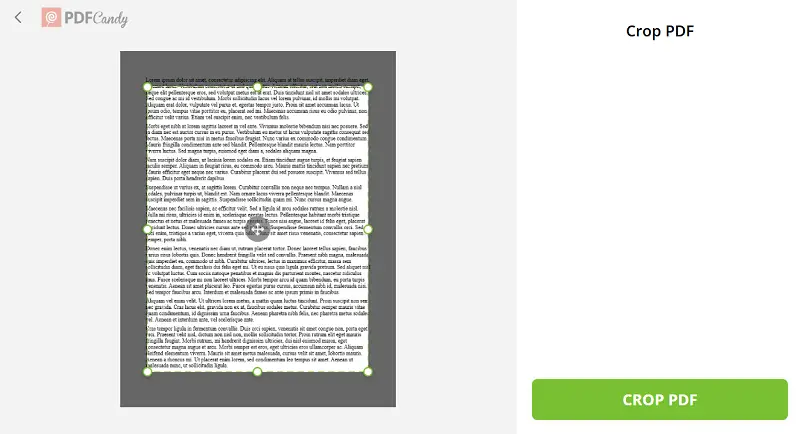
- First, you need to go to the "Crop PDF" tool.
- Now upload the file you want to crop. You can do that not only from the device but also from Google Drive and Dropbox cloud storage.
- Move the borders in the preview that appears after the paper is loaded to cut the PDF. Note that the service will crop all the pages in the PDF based on its first sheet.
- Click the "Crop PDF" button.
- Press "Download file" to save the record.
Advantages of cropping a PDF online:
| Pros of the online PDF cropper | Cons of the Adobe Acrobat |
|---|---|
| Crop PDF online without installation. | The program requires installation on your PC and will take up space. |
| Works on any OS be it Windows, macOS, Linux, Android, and iOS. | Available for Windows, macOS, and Android. |
| PDF cropping tool is free. | Distributed exclusively on a paid basis. |
| Ability to work from any location and on any device. | Will only crop PDF on the device where it was originally installed. |
| Suitable both for beginners and professionals to solve everyday tasks. | Steep learning curve. |
What else PDF Candy can offer:
- The application even on weak computers, because the website doesn't consume PC resources.
- User-friendly interface that even a novice can enjoy.
- High performance allows you to crop PDF files in a matter of minutes in just a few steps.
- More tools including a full-featured online PDF editor for better and accurate data processing.
- Cloud storage support, which saves space and allows you to work with Google Drive and Dropbox from different devices.
Ideal for:
- Consultants – update client deliverables on the move using any browser.
- Students – trim lecture slides and share them through cloud platforms.
- Event planners – adjust programs, tickets, or timetables without installing software.
Method 2. PDF Candy Desktop
PDF Candy Desktop is a program for Windows OS that allows to perform various tasks with files. The app's functionalities include converting, merging, splitting, compressing PDFs, and more. It's designed to offer convenience and flexibility for those who prefer working offline or need a comprehensive set of PDF tools all-in-one software.
Guide on cropping PDFs on Windows with PDF Candy Desktop
- Download the PDF cropper for Windows and install it on your computer.
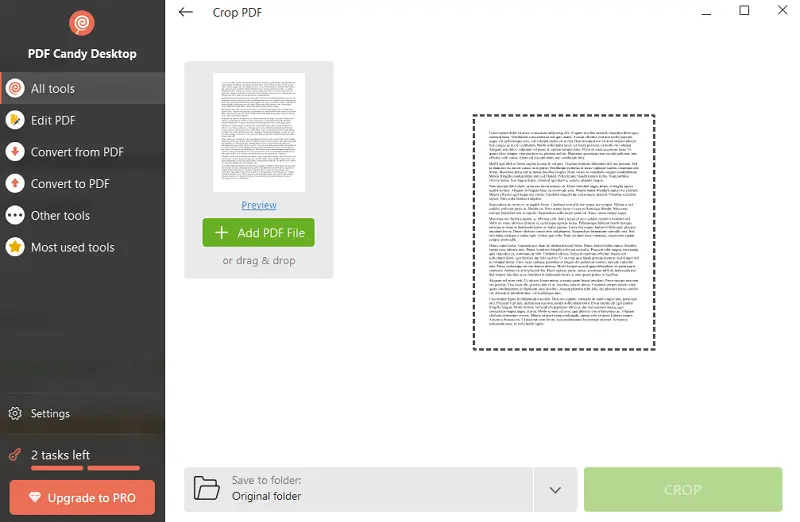
- Select the "Crop PDF" tool from the main menu.
- Upload the PDF you would like to crop by clicking "+Add File" or dragging and dropping it into the icon.
- Set up the cropping parameters by pulling the frames of the document.
- Press "Crop" to initiate the process.
- When finished, hit "Download File" to save the cropped PDF on your device.
The output can be saved in various formats like PDF, JPG, and PNG.
Benefits of the Desktop PDF Cropper:
- No need for an internet connection.
- No more worrying about reconnecting and losing important data.
- The application is incredibly user-friendly.
- Fast processing of large files.
- A set of additional tools for editing PDFs: split or merge PDF, etc.
Ideal for:
- Engineers – handle bulky schematics and projects in a stable offline environment.
- Healthcare staff – work with confidential forms securely on local devices.
- Authors – refine drafts and export polished versions without distractions.
Method 3. Preview
Preview is a default program available on macOS permitting to view and edit PDF files. It can crop PDF pages, making the task fast and easy for all Apple owners.
How to use Preview as PDF cropper for Mac
- Open the PDF file you intend to crop with Preview.
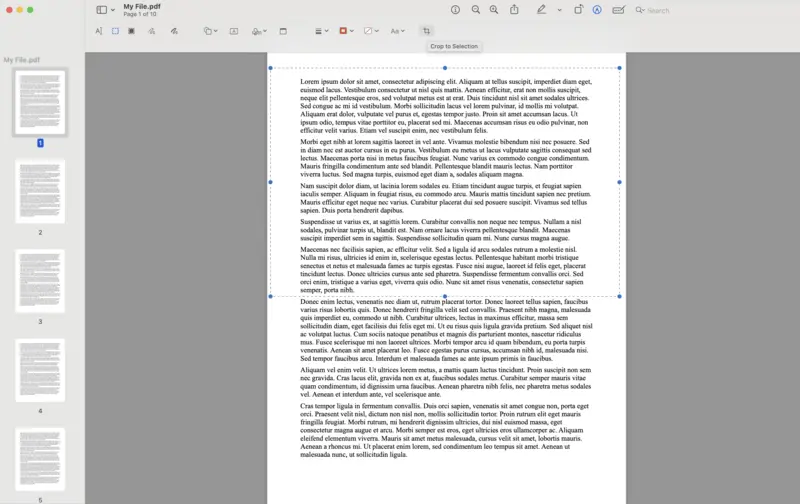
- Tap the "Show Markup Toolbar".
- Choose the "Rectangular Selection" button in the toolbar.
- Select the region you wish to crop the document.
- Click "Crop to Selection". The selected area will be cut off and the rest of the page will be cropped out.
Pros:
- Preview is a free in-build program on all iMacs and MacBooks.
- The UI is intuitive, making it simple for cropping PDFs.
- Some other editing features are available: for example, highlighting PDF.
Cons:
- The resulting size may be larger than the original, due to extra metadata included when saving the cropped version.
- If you don't back up your base file, it will be overwritten by the cropped version.
Ideal for:
- Professors – crop academic papers before uploading to course systems.
- Designers – tidy up portfolios or creative layouts directly on Mac.
- Archivists – prepare digitized records for collections with built-in tools.
Method 4. Snipping Tool
Windows OS users can benefit from utilizing the Snipping Tool as an efficient way to crop PDF files without relying on Adobe. It's part of the operating system, so you don't need to download anything extra programs or login anywhere.
How to crop a PDF on Windows in Snipping Tool
- Access the PDF you want to crop.
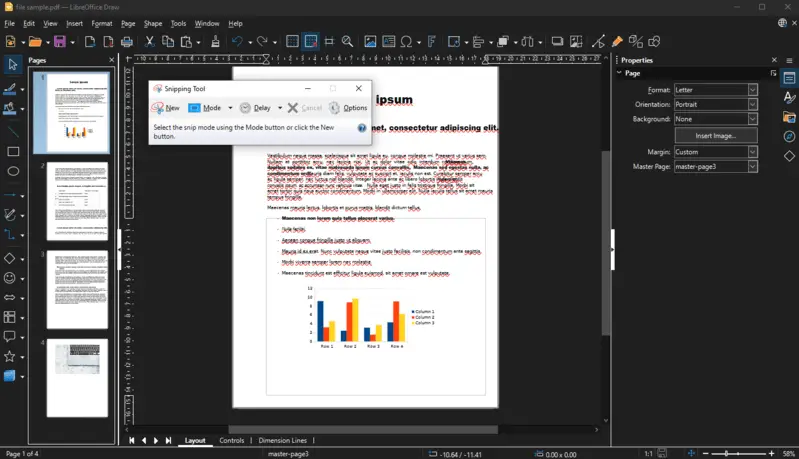
- Launch the tool from your "Start Menu".
- Select the type of snip you want to make - rectangular, free-form, or full-screen.
- Use your mouse to select the part of the PDF that you want to keep, then click "Save".
- The cropped portion will be preserved as a footage in your Pictures folder.
- Now open the file with any editor and save image as a PDF if needed.
Pros:
- There are no costs associated with other programs.
- You can make very precise selections with this tool.
Cons:
- The tool doesn't offer any editing features.
- You can't save your cropped PDF directly. You must save it as an image before converting it back to PDF format.
Ideal for:
- Real estate agents – capture floor plans or listings for quick sharing.
- Entrepreneurs – cut invoices or receipts into neat, stand-alone files.
- Marketers – extract visuals or report highlights for presentations.
Crop PDF without Adobe: advantages
Look, nobody’s got time (or cash) to fork over a monthly fee just to crop a PDF. There’s a bunch of tools out there that do the job—and honestly, most of them work as well as Adobe. You can slice, dice, and split PDFs in seconds, all without burning a hole in your wallet.
Check out the benefits:
- Cost-effective. Seriously, why pay for something you can get for free (or way cheaper)? Ditching Acrobat means you keep your money for actual fun stuff.
- Flexibility. Some folks like browser apps, some want a desktop app, others need to do stuff on their phone while waiting for their coffee. The point is, you do you—there’s a tool out there that fits.
- No software dependencies. You’re not locked into Adobe system. Swap between devices, platforms, whatever, and keep your workflow smooth as butter.
FAQ
Will text remain after cropping?
For vector-based PDFs, text stays unchanged. For scanned papers (raster PDFs), content might be cut off if cut improperly.
Can I crop a protected PDF?
Such files must be unlocked to process. Verify you have the necessary access rights to modify a password-secured contract.
How do I avoid ripping out essential content?
Keep adequate spacing around vital text or images when cropping to ensure they remain within the visible area.
How to crop a PDF without Adobe: conclusion
Cropping a PDF without Adobe is a pretty simple operation, provided you have access to suitable software. The output quality is directly tied to your input—if your source document’s low-res, don’t expect miracles. Always verify your file after cutting to catch any issues.
Be aware that not all tools can process encrypted PDFs. Check the capabilities of your chosen application before starting, especially if your records have security restrictions.
In summary: with the right utensil and a few straightforward steps, you can crop your PDFs efficiently—no Adobe license required.